


The Recovery Gap: Why Having a Backup Isn’t Enough
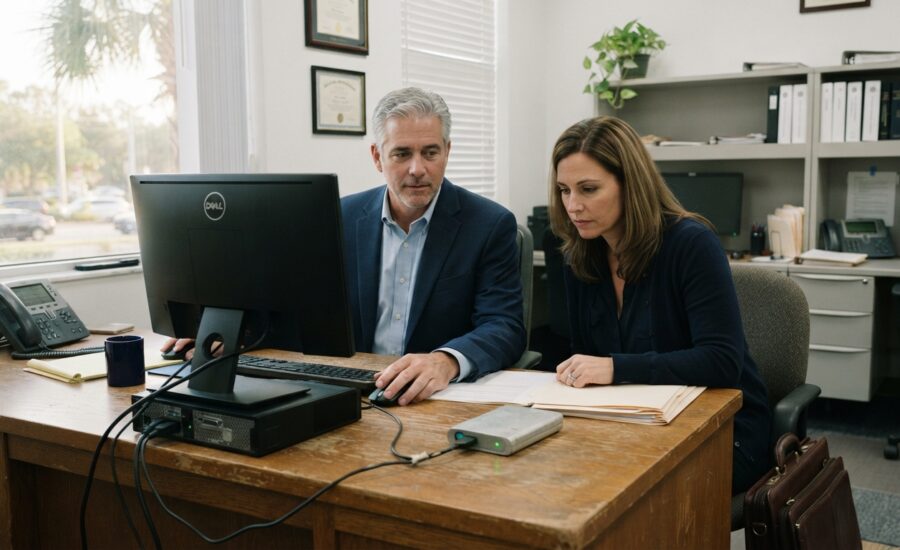
It’s 7:42 on a Monday morning. The managing partner’s workstation won’t boot, the matter files for a Thursday filing live on that drive, and the external backup disk sitting under the desk has been blinking green for three years. Everyone assumed the data was safe. Nobody had ever tried to pull it back.
That gap between storing data and retrieving it under pressure is where most small business backup strategies quietly fail. A backup is an insurance policy that has never been claimed; business continuity is the proven ability to be operational again within hours, with billable work intact and client obligations met. Effective backup and disaster recovery planning connects stored copies to a documented process for restoring files, applications, and business operations.
The threat environment makes that distinction expensive. Veeam reports that 41% of data is compromised during a typical cyberattack, and Microsoft’s analysis found that over 90% of ransom-stage attacks targeted unmanaged devices — the laptops, home machines, and aging desktops that sit outside any monitoring system.
For a law firm or medical practice, a failed restore is not an inconvenience. It is a retention compliance failure, a notification obligation, and a week of unrecoverable billable hours.
Restoring File History to a New Computer in 2026
Replacing a failed workstation exposes the most common restore obstacle in small offices: Windows File History does not treat a drive from another machine as its own. Plug in the old backup disk and the new PC sees storage, not history. The link has to be made deliberately.
Here is the Windows File History recovery 2026 workflow on a replacement machine:
Connect the external drive or map the network share that holds the original File History folder.
Open Settings, search for File History, and choose Select drive from the left-hand menu.
Pick the connected drive from the list of available locations.
When Windows detects an existing backup set created by a different user or PC, it offers I want to use a previous backup on this File History drive. Select it, confirm the source machine and user name, then turn File History on.
Open Restore personal files to browse versions by date and send them to the new profile.
Pro-Tip: Always run Select drivebefore enabling File History on the new PC. If you turn it on first, Windows may create a fresh, empty backup set and bury the old one as a secondary entry — making recovering files from old PC hardware far more tedious than it needs to be.

Navigating Backup Catalogs and Search Functions
Once the backup is attached, the question becomes how to recover backup files quickly rather than exhaustively. Native tooling handles this by date. In Windows Server Backup, the Recover wizard asks where the backup lives, presents a calendar of available restore points, and lets you drill into the folder tree of whichever point you select. That works well when you know approximately when a file was last correct. It works poorly when a paralegal says only that a document “existed sometime last quarter,” because each restore point has to be opened and examined on its own.
Enterprise-grade platforms close that gap with indexed catalogs. Veeam’s Backup Browser, for example, indexes file-level contents across restore points so a single filename or extension query returns every version it appears in, with timestamps, before anything is mounted. The practical difference during business data restoration is measured in hours of staff time: searching metadata instead of mounting images sequentially.
The lesson for an office without dedicated IT staff is to evaluate backup products on their search interface, not just their capture schedule. A catalog you cannot query is an archive you cannot use under deadline.
The Hidden Threat: Compromised Backups During Cyberattacks
Modern intrusions rarely start with encryption. They start with reconnaissance, and the backup repository is a priority target. Attackers who find a backup server reachable with the same domain credentials as the production network will delete retention points, disable scheduled jobs, or encrypt the repository itself before touching a single workstation. By the time the ransom note appears, the recovery path has already been removed. Proactive cybersecurity monitoring helps identify suspicious network activity before an intrusion escalates into widespread disruption.
This changes what a usable backup looks like. Veeam reports that 41% of data is compromised during a typical cyberattack, which means a restore is often a partial restore — rebuilding from fragments, reconciling gaps, and verifying integrity before anyone can bill against the result. Recovery timelines stretch not because the copy process is slow, but because trust in the data has to be re-established.
The solution is immutability. Backup copies written to storage that cannot be altered or deleted within a defined retention window — whether object-lock cloud storage or hardened on-premise repositories — survive credential compromise because no account, including a stolen administrator account, has permission to rewrite them. For a regulated practice, an immutable copy held offsite is the difference between a bad week and a closed business.
Managed IT vs. DIY: The Cost of Recovery Friction
DIY Recovery
Managed Recovery
Owner or office manager troubleshoots during business hours
Dedicated technician engaged immediately
Backup status checked when someone remembers
Daily job verification and alerting
Failures discovered at restore time
Silent failures caught within a day
Unpredictable emergency labor costs
Fixed monthly pricing
Restore procedures untested
Scheduled test restores
The true cost of the DIY approach is rarely the hardware. It is a practice owner spending Tuesday afternoon reading forum threads about catalog corruption instead of seeing patients or meeting with clients. That time has a billable rate, and it never appears on an IT invoice.
Silent failures are a specific risk that proactive monitoring eliminates. A backup job that has been failing on a locked database file for eleven weeks goes unnoticed unless logs are actively monitored. Managed IT services in Orlando built around fixed monthly pricing turn that vigilance into a predictable line item rather than an emergency expense.
When a server goes down, proximity matters too. Managed IT backup services with local technicians can be on site with replacement hardware while a remote-only vendor is still opening a ticket.
The Bottom Line: What You Need to Know About Recovery
Verify the recovery path, not the backup status. A green checkmark confirms that data was written. Only a completed test restore confirms that data can come back, and that is the only metric that protects billable hours.
Link legacy drives manually when you replace hardware. Windows File History will not adopt a backup set from a different PC on its own. Use Select drive, then choose the option to use a previous backup, before enabling protection on the new machine.
Choose backup tools with a searchable catalog. Browsing restore points by date works when you know the date. File-level indexing lets staff find a document by name across every retention point without mounting images one at a time.
Make at least one copy immutable and offsite. Attackers target repositories before they target workstations. Storage that cannot be deleted or altered within its retention window survives a stolen administrator credential.
Price the alternative honestly. An owner acting as the IT department pays in lost professional time and undetected backup failures, both of which cost more than a predictable monthly service agreement.
Securing Your Business Continuity for 2026
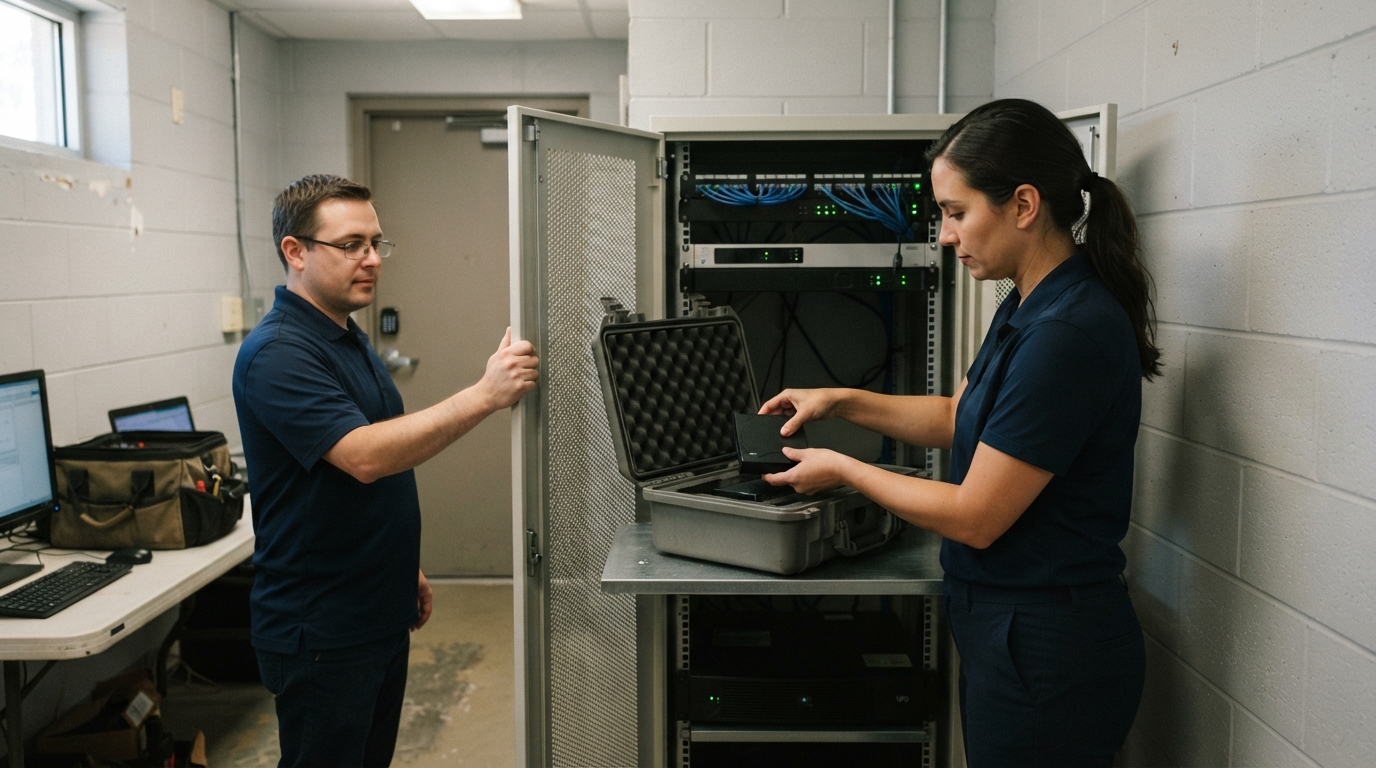
The shift that distinguishes resilient practices from vulnerable ones is a change in approach. Reactive IT asks whether the backup ran. Proactive IT asks how long it would take to put twelve attorneys or six exam rooms back to work after a server loss, and then proves the answer by rehearsing it.
Set a quarterly recovery test on the calendar and treat it like any other compliance obligation. Pick a real file, restore it from the oldest retention point you keep, and document the elapsed time. Once a year, restore an entire workstation image to spare hardware. These exercises surface the problems — expired credentials, orphaned catalogs, unlinked File History drives — while there is no deadline attached and no client waiting.
If your office lacks the time or mandate to run those tests, partner with someone who does. CFL Technology Source provides local, high-accountability backup management and recovery planning for professional service firms, with fixed monthly pricing and verified restores.
Why Your Business Backup Strategy Fails at the Recovery Stage (and How to Fix It)
The Recovery Gap: Why Having a Backup Isn’t Enough
It’s 7:42 on a Monday morning. The managing partner’s workstation won’t boot, the matter files for a Thursday filing live on that drive, and the external backup disk sitting under the desk has been blinking green for three years. Everyone assumed the data was safe. Nobody had ever tried to pull it back.
That gap between storing data and retrieving it under pressure is where most small business backup strategies quietly fail. A backup is an insurance policy that has never been claimed; business continuity is the proven ability to be operational again within hours, with billable work intact and client obligations met. Effective backup and disaster recovery planning connects stored copies to a documented process for restoring files, applications, and business operations.
The threat environment makes that distinction expensive. Veeam reports that 41% of data is compromised during a typical cyberattack, and Microsoft’s analysis found that over 90% of ransom-stage attacks targeted unmanaged devices — the laptops, home machines, and aging desktops that sit outside any monitoring system.
For a law firm or medical practice, a failed restore is not an inconvenience. It is a retention compliance failure, a notification obligation, and a week of unrecoverable billable hours.
Restoring File History to a New Computer in 2026
Replacing a failed workstation exposes the most common restore obstacle in small offices: Windows File History does not treat a drive from another machine as its own. Plug in the old backup disk and the new PC sees storage, not history. The link has to be made deliberately.
Here is the Windows File History recovery 2026 workflow on a replacement machine:
Navigating Backup Catalogs and Search Functions
Once the backup is attached, the question becomes how to recover backup files quickly rather than exhaustively. Native tooling handles this by date. In Windows Server Backup, the Recover wizard asks where the backup lives, presents a calendar of available restore points, and lets you drill into the folder tree of whichever point you select. That works well when you know approximately when a file was last correct. It works poorly when a paralegal says only that a document “existed sometime last quarter,” because each restore point has to be opened and examined on its own.
Enterprise-grade platforms close that gap with indexed catalogs. Veeam’s Backup Browser, for example, indexes file-level contents across restore points so a single filename or extension query returns every version it appears in, with timestamps, before anything is mounted. The practical difference during business data restoration is measured in hours of staff time: searching metadata instead of mounting images sequentially.
The lesson for an office without dedicated IT staff is to evaluate backup products on their search interface, not just their capture schedule. A catalog you cannot query is an archive you cannot use under deadline.
The Hidden Threat: Compromised Backups During Cyberattacks
Modern intrusions rarely start with encryption. They start with reconnaissance, and the backup repository is a priority target. Attackers who find a backup server reachable with the same domain credentials as the production network will delete retention points, disable scheduled jobs, or encrypt the repository itself before touching a single workstation. By the time the ransom note appears, the recovery path has already been removed. Proactive cybersecurity monitoring helps identify suspicious network activity before an intrusion escalates into widespread disruption.
This changes what a usable backup looks like. Veeam reports that 41% of data is compromised during a typical cyberattack, which means a restore is often a partial restore — rebuilding from fragments, reconciling gaps, and verifying integrity before anyone can bill against the result. Recovery timelines stretch not because the copy process is slow, but because trust in the data has to be re-established.
The solution is immutability. Backup copies written to storage that cannot be altered or deleted within a defined retention window — whether object-lock cloud storage or hardened on-premise repositories — survive credential compromise because no account, including a stolen administrator account, has permission to rewrite them. For a regulated practice, an immutable copy held offsite is the difference between a bad week and a closed business.
Managed IT vs. DIY: The Cost of Recovery Friction
The true cost of the DIY approach is rarely the hardware. It is a practice owner spending Tuesday afternoon reading forum threads about catalog corruption instead of seeing patients or meeting with clients. That time has a billable rate, and it never appears on an IT invoice.
Silent failures are a specific risk that proactive monitoring eliminates. A backup job that has been failing on a locked database file for eleven weeks goes unnoticed unless logs are actively monitored. Managed IT services in Orlando built around fixed monthly pricing turn that vigilance into a predictable line item rather than an emergency expense.
When a server goes down, proximity matters too. Managed IT backup services with local technicians can be on site with replacement hardware while a remote-only vendor is still opening a ticket.
The Bottom Line: What You Need to Know About Recovery
Securing Your Business Continuity for 2026
The shift that distinguishes resilient practices from vulnerable ones is a change in approach. Reactive IT asks whether the backup ran. Proactive IT asks how long it would take to put twelve attorneys or six exam rooms back to work after a server loss, and then proves the answer by rehearsing it.
Set a quarterly recovery test on the calendar and treat it like any other compliance obligation. Pick a real file, restore it from the oldest retention point you keep, and document the elapsed time. Once a year, restore an entire workstation image to spare hardware. These exercises surface the problems — expired credentials, orphaned catalogs, unlinked File History drives — while there is no deadline attached and no client waiting.
If your office lacks the time or mandate to run those tests, partner with someone who does. CFL Technology Source provides local, high-accountability backup management and recovery planning for professional service firms, with fixed monthly pricing and verified restores.
Request a Free Network Audit to discuss your backup setup and recovery readiness!
Archives
Categories
Archives
Recent Post
Categories
Portfolio
Meta
Calender